
All of these capabilities live inside the to the right of the document title.
Find and Replace
Enter the word to find and its replacement. Replace individually or all at once.Version History
Auto-Save
Inkstone automatically saves as you type. The home page shows when each document was last saved (e.g., “Edited 2 minutes ago”). To view past versions of the document, open the document, click the next to the title, and select Version History. This will show you all previous versions of the document.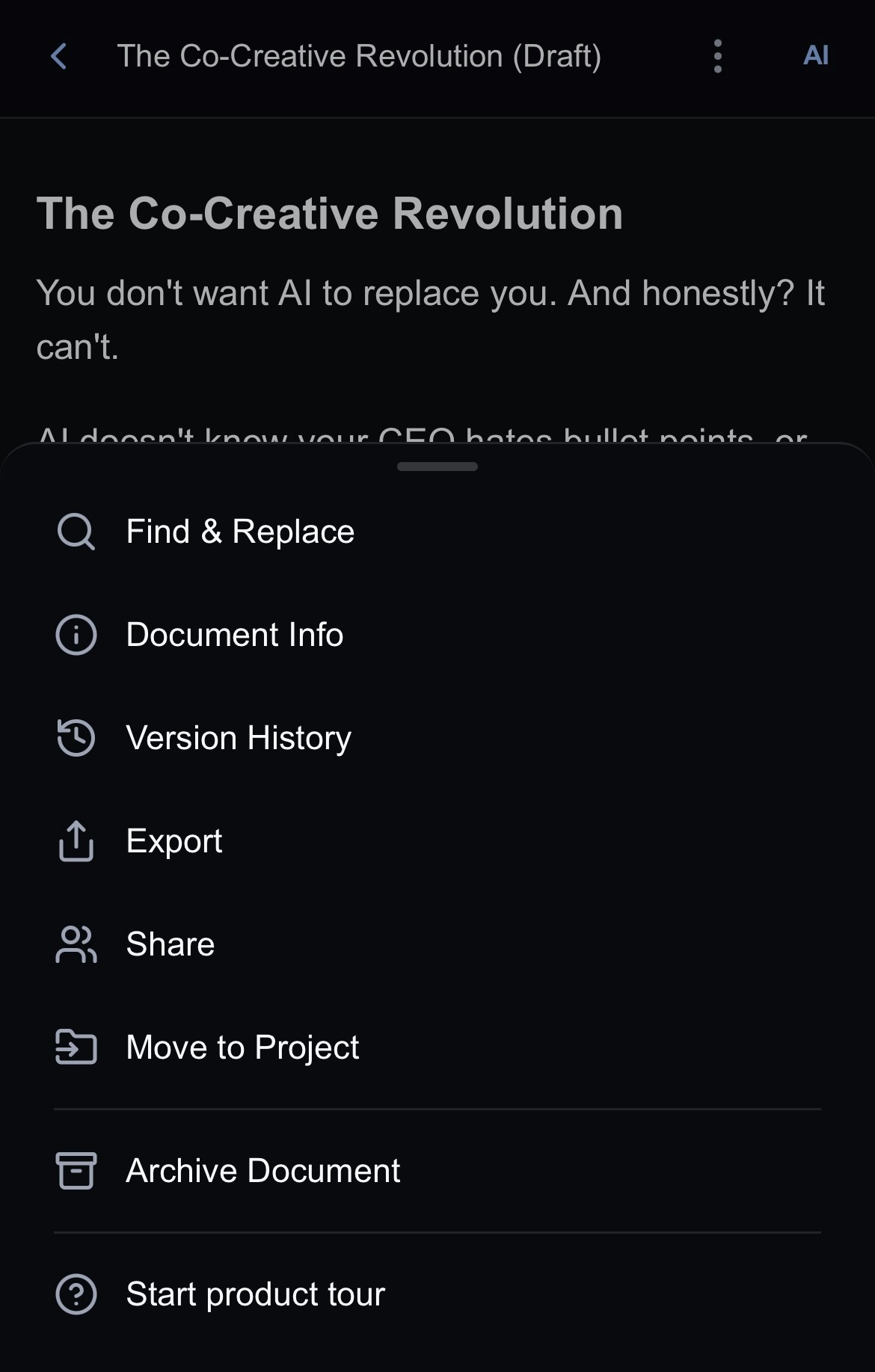
Versions
Since Inkstone saves your work as you type, you can preview and restore previous versions of your document at any time. Simply head to Version History and click any previous version of your document. Choose to either preview or restore that version. Changes between versions are highlighted in red and green.Export
Export documents to one of four formats:- Word (.docx)
- PDF (.pdf)
- Markdown (.md)
- Rich Text (.rtf)
Share
Share your work to collaborate in real time. From the menu, select Share, input the email address of the person you want to share your document with, and hit Share! The document will then appear in that user’s recent docs. You can revoke access at any point by selecting the next to the user’s details.Notes:
- The user you want to collaborate with must be an Inkstone user.
- You can also share projects with other Inkstone users via the next to a project name on the home page.
Move to Project
Use this option to move the current document to another project.Archive Document
To delete a document, select Archive Document. This removes it from your view. Accidentally archived? Undo the action or restore it from the home page.Start Product Tour
Want a refresher of Inkstone’s capabilities? Start the product tour and do the onboarding demo again to brush up!Next Steps
AI Chat: top tips on chatting with our AI assistant, JeannieAI Editing: work with Jeannie to edit your documents
AI Threads: manage your conversations with Jeannie