
Creating Threads
If you use the AI icons on the Tool Panel, threads are created automatically when you start a Deep Research query, run a Web Search, use Proofreading or Fact Checking. By default, research tools open in a new thread—you can uncheck “Open in new thread” to continue in your current conversation instead.Working with Thread Tabs
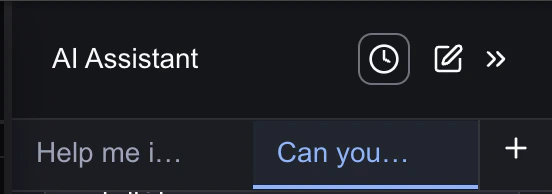
Finding Your Threads
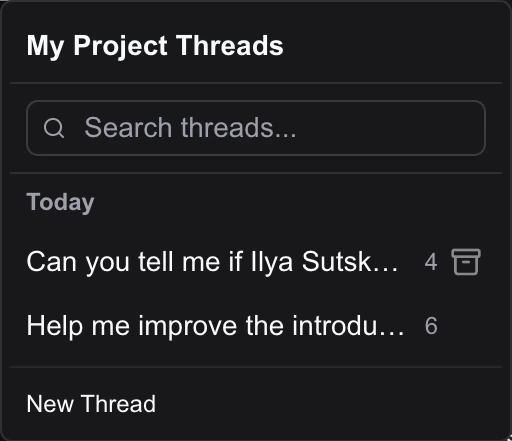
Thread Naming
Threads are automatically named based on your first query or the type of tool you used. A Deep Research about productivity might become “Evidence-based focus strategies.” This makes it easy to scan your thread list and find what you’re looking for.Renaming Your Threads
Quickly rename your threads by opening the thread dropdown and hitting the icon to the right of the thread name. Press Enter to save the new name.Archiving Your Threads
You can easily archive your threads by opening the thread dropdown and hitting the icon to the right of the thread name.Continuing Conversations
Because threads maintain context, you can ask follow-up questions without re-explaining what you’re working on. Ask “Tell me more about the economic factors” and Jeannie knows you’re still discussing the French Revolution from earlier in the conversation.You:_ What are the main causes of the French Revolution?_ AI:_ [Provides detailed response about causes]_ You:_ Tell me more about the economic factors._ AI:_ [Expands on economic causes, knowing the context]_
Threads and Projects
Threads belong to your project, not individual documents. All documents in a project share the same threads, so research you do for one document is accessible from any other document in that project. This makes it easy to build up a library of research that supports your entire project..Change the Model
You can choose to work with Claude Opus 4.6, Sonnet 4.6 or GPT-5.2. We’ve set Claude as the default to get you started, but feel free to switch things up anytime using the dropdown menu right in the chat. We’re working on bringing even more models to the party! Got a favorite you’d love to see? Swing by our Discord channel and let us know—we’d love to hear from you!Next Steps
- Creating and Managing - Organize your documents and research
- Working with Documents - Manage documents within projects