
What is a Project?
- Documents — Your writing files
- AI Threads — Research and conversations
Creating a Project
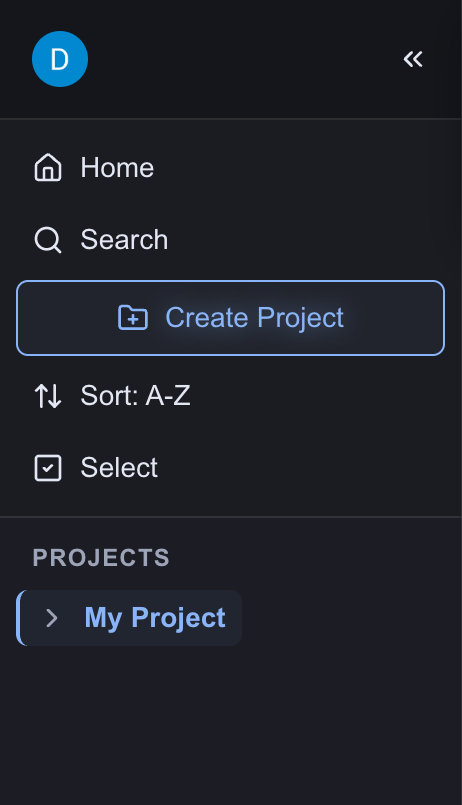
From the main editor screen, head to the top of the panel on the left Click Create Project Your new project opens with a blank document ready for writing.Navigating Projects
Sort
You can easily sort projects Alphabetically or by Latest to see the most recent documents at the top.Within The Editor:
All documents in the left panel are organizied in projects. You can see the list of your projects there.Sharing Projects for Collaboration
Navigate to the project name in the left panel of the Editor. Tap the and select Share. Then enter the email address of the person you want to share the project with.Note: this person must be an Inkstone user.
You can revoke access to your project at any time, by clicking the icon next to the person’s name. Any projects that are shared with you will appear at the top of the left panel of the Editor.
Organizing Documents
Within a project, you can:- Create documents - Click the New Document button in the sidebar.
- Rename documents - Hit the document menu (the icon) and select Rename.
- Archive documents - Hit the document menu (the icon) and select Archive.
- Move documents - Hit the document menu (the icon) and select Move To…, from there, you can move the document to any other project.
- Share documents - Hit the document menu (the icon) and select Share, then enter the person’s email address and click Enter.
Project Best Practices
One Project Per Major Work
- ✅ “Q4 Marketing Plan” (all related docs together)
- ❌ “My Documents” (too broad)
Descriptive Names
- ✅ “Client Proposal - Acme Corp”
- ❌ “Project 1”
Regular Cleanup
- Archive completed projects
- Archive documents you no longer need
- Keep active projects focused
Archiving Projects

Restoring Archived Projects
To restore a project that you have archived, select Restore at the top of the menu on the left panel. A list of your archived projects will appear on the right hand side of the screen. Simply click Restore on the project you want to restore, and it will reappear in the panel on the left, with all the documents belonging to the project.Next Steps
- Working with Documents - Managing documents within projects
- Editor Basics - Learn the fundamentals of writing