
The Editor Interface
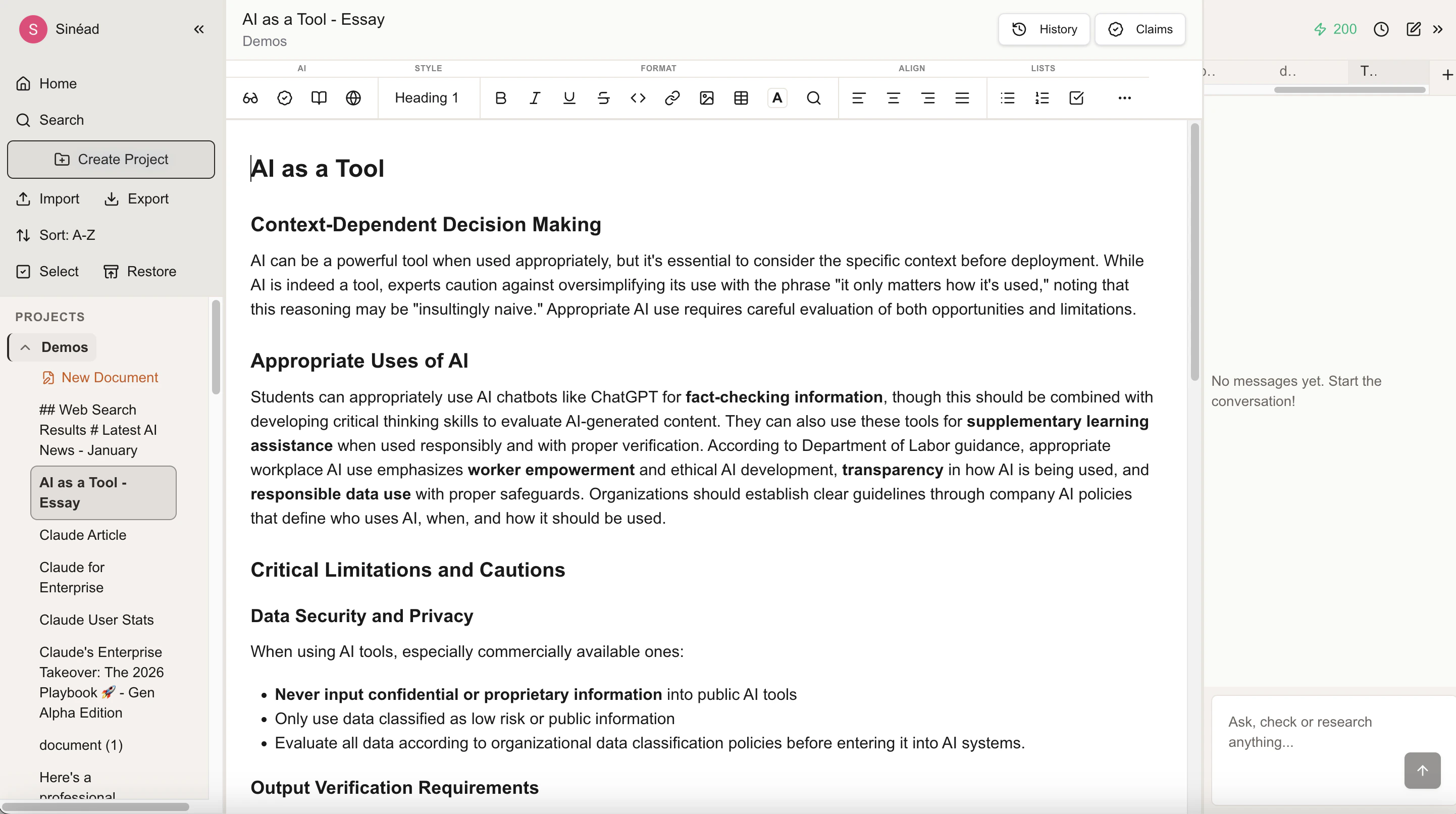
When you open a document, you’ll see four main areas:- The Project and Doc Bar - (on the left side of the screen) Where projects and documents are created and stored. Collapsable with the >> button.
- Toolbar - Formatting controls and AI tools at the top
- Writing Area - The main canvas where you write
- AI Panel - (on the right) Expandable panel for AI conversations (toggle with the two arrows). Collapsable with the << button.
Creating Documents
To create a new document:- Navigate to your project via the document explorer in the left panel
- Click the New Document button under the name of your folder.
- Start typing - your document will be named “Untitled Document” until you change it
Editing Document Titles
There are three ways you can edit the title of your document:- Click on the document title at the top of the page to edit it. The title automatically saves when you click away or press Enter.
- Navigate to your project in left panel. Click the three dots next to the “Untitled Document” you want to change the name of. Select Rename Document. Begin typing. Press Enter or click away to save
- Ask the AI assistant in the panel on the right to change the name of your document to whatever you like! It will update and save instantly.
Auto-Save and Versions
Auto-Save
Inkstone automatically saves your work as you type. You’ll see a timestamp showing when your document was last saved (e.g., “Edited 2 minutes ago”). Click the history button to show past versions of the document.
Versions
Since Inkstone saves your work as you type, you can preview and restore previous versions of your document at any time. Simply select the History button/the timestamp showing when your document was last edited, on the top right of the screen. The History tab will open. Here, you will see all previous versions of your document. Choose to either preview or restore that version. Changes between that version and the current version are highlighted in red and green.Basic Text Editing
Type normally to add text. Use standard keyboard shortcuts:- Select all:
Cmd/Ctrl + A - Copy:
Cmd/Ctrl + C - Cut:
Cmd/Ctrl + X - Paste:
Cmd/Ctrl + V - Undo:
Cmd/Ctrl + Z - Redo:
Cmd/Ctrl + Shift + Z - Find and Replace:
Cmd/Ctrl + F
Paragraphs and Line Breaks
- Press Enter to create a new paragraph
- Press Shift + Enter to create a line break within the same paragraph
Next Steps
- Formatting - Learn about text formatting options
- Keyboard Shortcuts - Speed up your workflow