
Here’s what you’ll see in the chat:
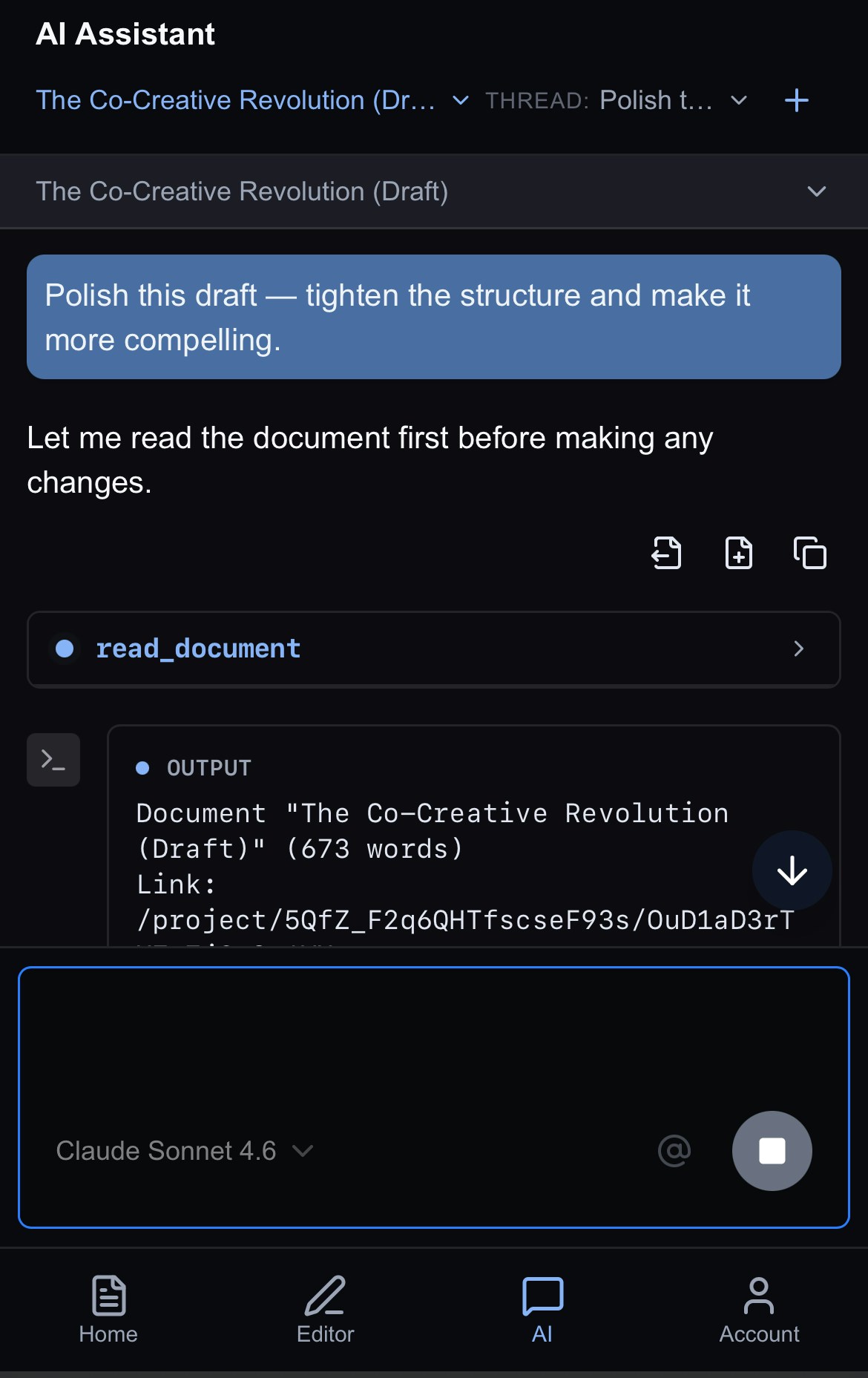
- Document name in the top left in blue. Drop down here to change which document you want to talk about.
- Thread name on the top left. Drop down to switch threads, edit the name, or delete it.
- Preview of the document you’re discussing. Drop down to see more of that document
- Chat panel where you can see all your messages with Jeannie.
- Chat box where you can type messages to Jeannie.
- Model selection drop down.
- @ : use to call documents to give Jeannie additional context.
- Proofread: Review your writing for spelling and grammar errors using context
- Fact Check: Verify all claims in your writing with cited sources
- Deep Research: Create detailed reports using OpenAI’s Deep Research tool
- Web Search: Find specific details or stats
Using Results in Your Document
After reviewing your search results, you have three ways to use the information:Copy to Clipboard
Copy the entire response to your clipboard. Paste into other apps, emails, or anywhere outside Inkstone.
Insert into Document
Add results directly to your document. Ideal for incorporating facts or quotes into your current work.
Create New Document
Generate a new document with the results. Perfect for saving research separately or building a reference collection.