
- Current events - News and recent developments and articles
- Quick facts - Dates, statistics, definitions
- Real-time data - Stock prices, weather, scores
- Verification - Checking if something is accurate
Starting a Web Search
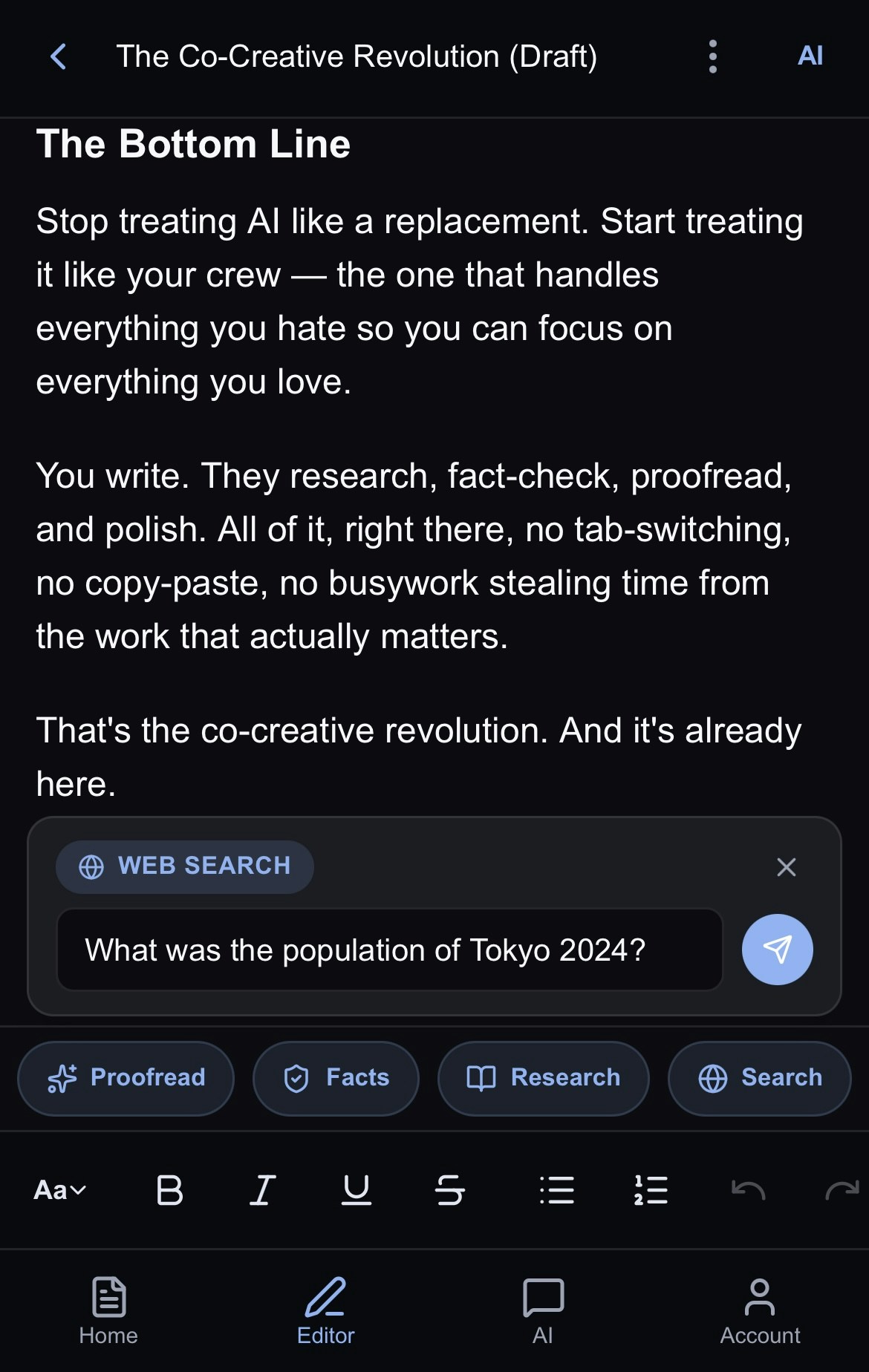
From the Editor:- Head to the AI section above the toolbar.
- Tap the Search button.
- Enter your search query.
- Press Enter or click the search button.
- You will be taken to the AI chat panel while Jeannie searches for your results.
- Go to the AI Chat panel.
- Ask Jeannie to search the web for what you need.
- Press Enter or click the search button.
Writing Effective Queries
Web Search works best with direct, specific queries:Good queries:
- “What was the population of Tokyo in 1976 and compare it to the population in 2025”
- “What’s the latest iPhone software version and are people reporting lots of bugs?”
- “Who won the 2024 Nobel Prize in Literature and tell me their history”
Understanding Results
When your search completes, Jeannie displays the results directly in the chat panel. The response typically includes a direct answer to your question, synthesized from multiple web sources. You’ll see the key information presented in a clear, readable format—no need to click through multiple links yourself. Jeannie formats the results intelligently in Markdown, often organizing information with headings, bullet points, or numbered lists depending on the type of query. For factual questions, you’ll get a concise answer. For more complex topics, the response includes relevant context and background information to help you understand the full picture. Each result includes source citations so you can verify the information or dive deeper into any topic that interests you by clicking the links. You can ask Jeannie to put the results right into your document or to intelligently use the information in the results to write something new or create a table or anything you can imagine.Using Results in Your Document
After reviewing your search results, you have three ways to use the information:Copy to Clipboard
Copy the entire response to your clipboard. Paste into other apps, emails, or anywhere outside Inkstone.
Insert into Document
Add results directly at your cursor position. Ideal for incorporating facts or quotes into your current work.
Create New Document
Generate a new document with the results. Perfect for saving research separately or building a reference collection.
The Result
Once inserted or created, the content becomes regular editable text. You can format it, trim it down, expand on certain points, or use it as a starting point for your own writing. Jeannie remains available in the same thread if you need follow-up searches or want to refine the information further.Web Search vs. Deep Research
Limitations
- Results depend on what’s available online
- May not find paywalled content
- Very recent events (minutes ago) may not be indexed
- Cannot access private or restricted information