
What Proofreading Checks
This is far more than a basic spell checker. The AI proofreader deeply analyzes your writing to find:- Grammar - Subject-verb agreement, tense consistency, punctuation errors
- Missing words - Accidentally omitted words that break sentence flow
- Spelling - Typos, misspellings, and incorrect word usage
- Style - Wordiness, passive voice, clichés, awkward phrasing
- Clarity - Confusing sentences, ambiguous references, unclear meaning
- Consistency - Formatting, capitalization, terminology throughout
Starting Proofreading
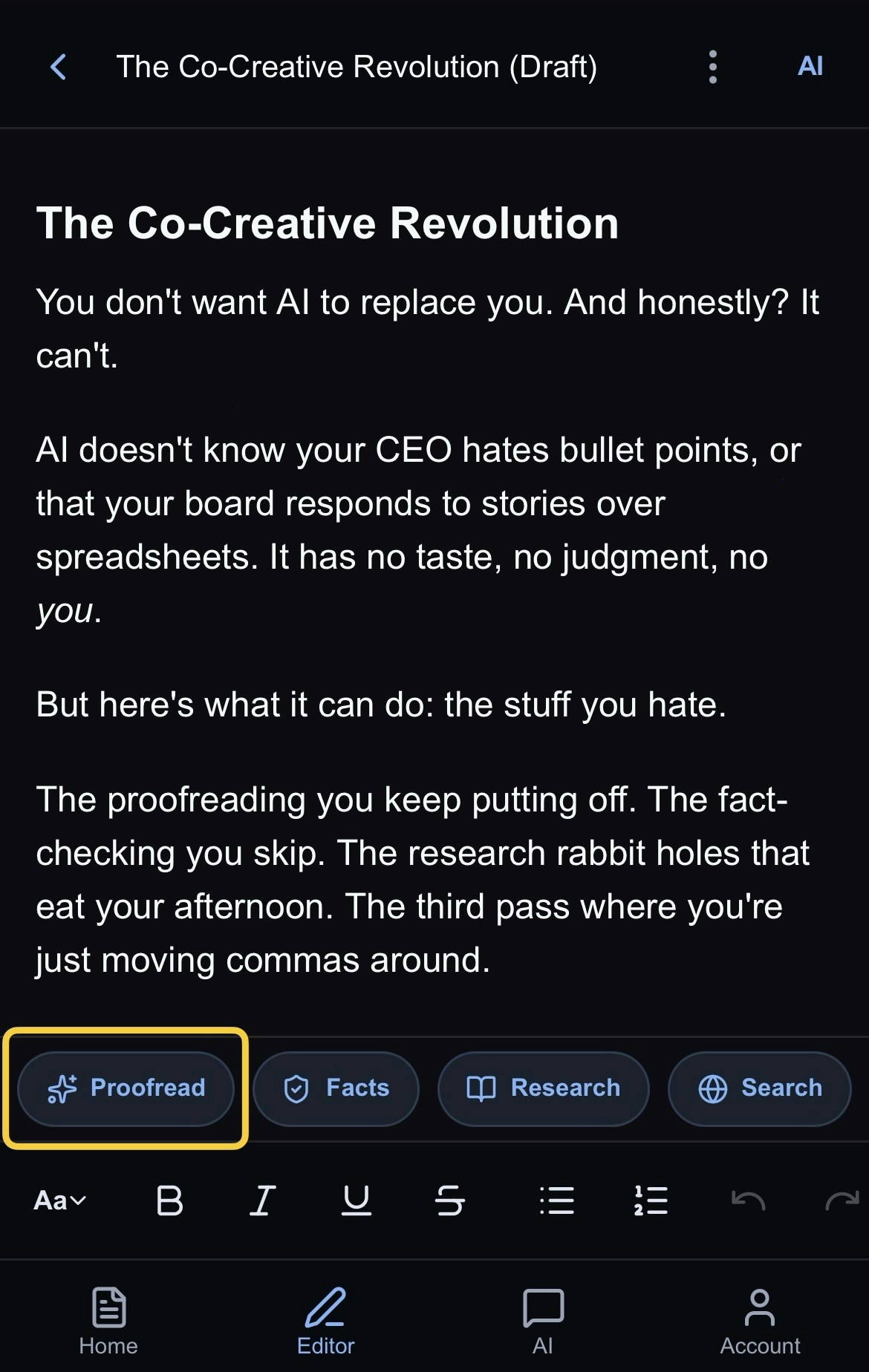
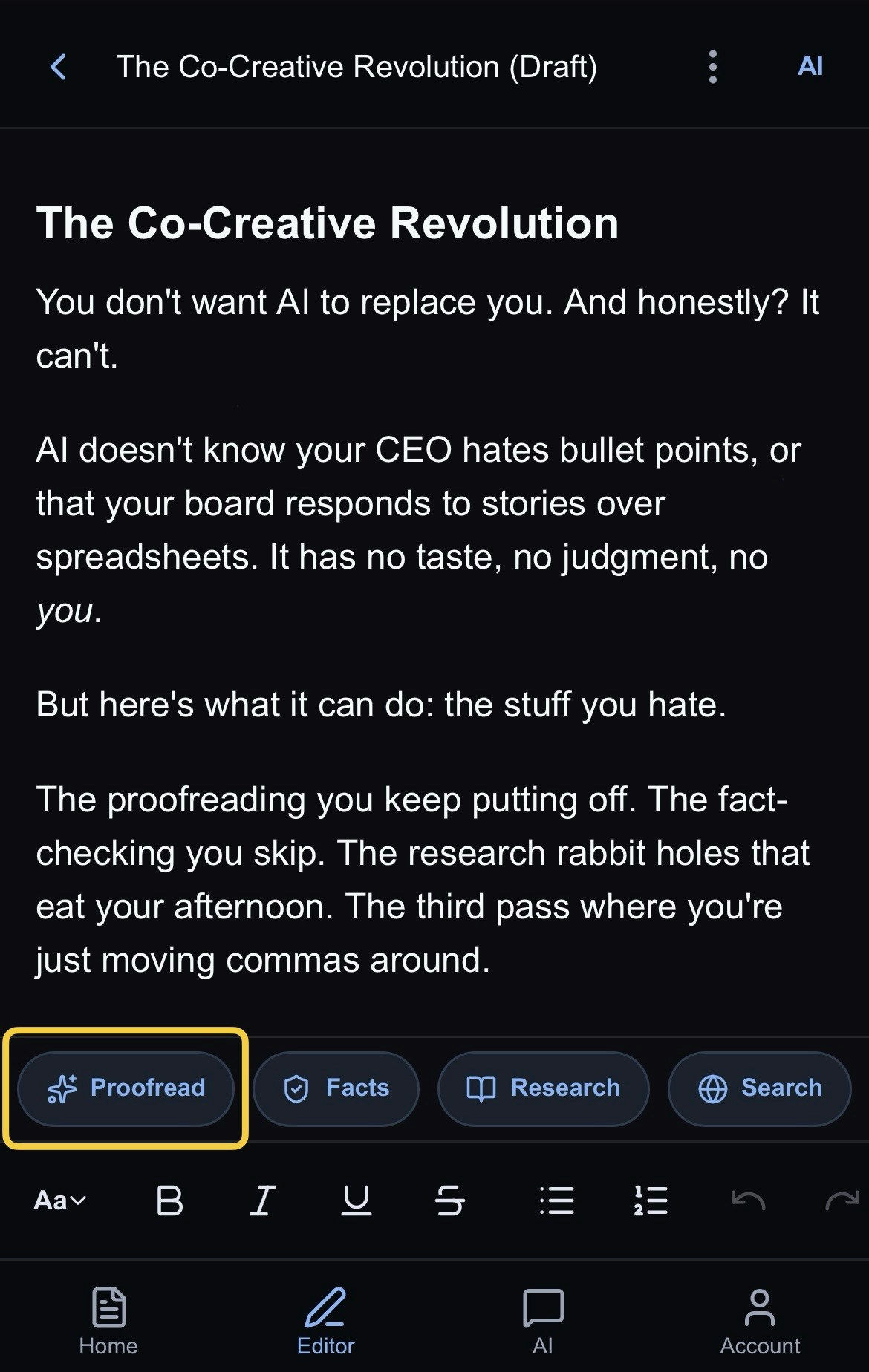
From the Toolbar
- Write or paste your content into the document
- Head to the AI section above the toolbar
- Select Proofread
- Jeannie will analyze your document
- You can see this process happening in the AI panel
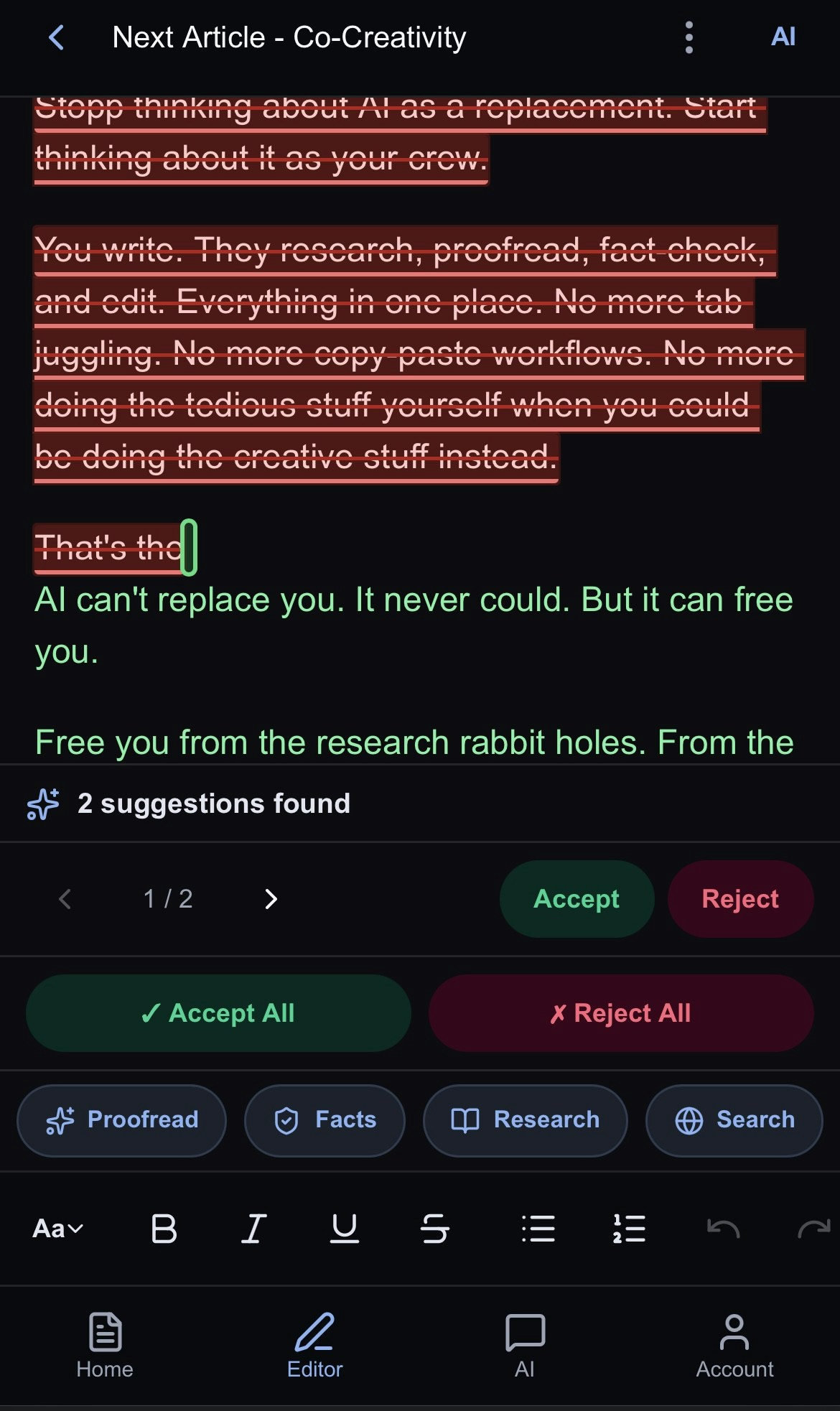
- Jeannie will provide suggestions. You choose to accept/reject them
From the Assistant
You can also just ask Jeannie directly: “Proofread my document” or “Check this for grammar and style.” Jeannie knows how to call the proofreading tool and will run the analysis for you. This is convenient when you’re already in a conversation and want a quick check. You can give Jeannie special instructions like “remove any extra paragraph breaks and any double spacing after the period”. Jeannie knows how to call the proofreading tool and will run the analysis for you. This is convenient when you’re already in a conversation and want a quick check.While Proofreading Runs

Understanding Suggestions
Proofreading suggestions appear in the AI panel with:
- The issue - What was found.
- Location - Where in the document.
- Suggestion - How to fix it.
- Explanation - Why it matters.
- Accept/Reject - Choose to accept/reject the suggestions individually or all at once.
Applying Suggestions
When the proofreader finds an issue, you’ll see a suggestion bar with options to accept or reject the change. For each suggestion, you can:- Accept - Apply the change to your document
- Reject - Keep your original text
- Modify - Use the suggestion as a starting point
Types of Suggestions
Grammar Fixes
❌ “The team are working on it.” ✅ “The team is working on it.”
Clarity Improvements
❌ “It is important to note that the aforementioned items should be considered.” ✅ “Consider these items.”
Style Refinements
❌ “The report was written by the team.” ✅ “The team wrote the report.”
Consistency Corrections
❌ Using both “e-mail” and “email” in the same document ✅ Consistent use of “email” throughout
Customizing Proofreading
You can guide the proofreader by mentioning:- Tone - “Check for formal/casual tone”
- Audience - “This is for technical readers”
- Focus - “Focus on grammar only”
- Style guide - “Follow AP style”
Tips for Best Results
- Be patient with long documents - Jeannie intelligently loops through your entire document, catching issues throughout. Longer documents may take a minute or two, but there’s no need to break them into sections yourself.
- Jeannie is fast and calls tools in parallel but for very long documents be patient - AI intelligently loops through your entire document, catching issues throughout. Longer documents may take a minute or two, but there’s no need to break them into sections yourself.
- Multiple passes - Run proofreading again after major edits to catch any new issues
- Context matters - Some suggestions may not fit your intended style or voice
- Trust your voice - Don’t accept every suggestion blindly; you know your writing best
Limitations
- May not catch all errors
- Style suggestions are recommendations, not rules
- Cannot understand your full intent
- Technical jargon may be flagged incorrectly