> ## Documentation Index
> Fetch the complete documentation index at: https://docs.inkstone.pro/llms.txt
> Use this file to discover all available pages before exploring further.
# Web Search
> Web Search finds current information from the web in real-time.
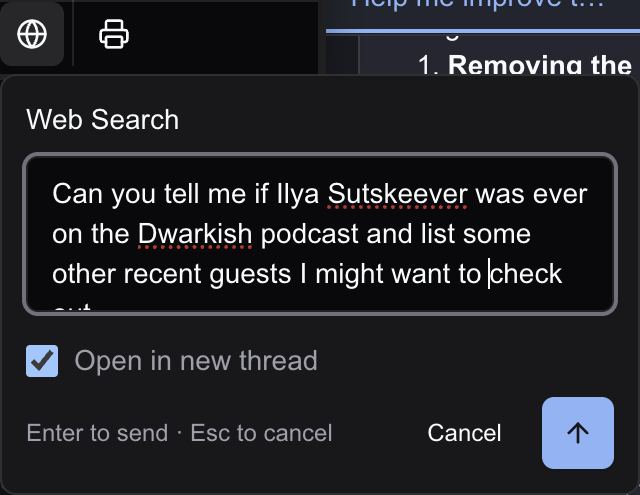 Use Web Search for recent news, current data, or quick fact lookups.
Web Search is ideal for:
* **Current events** - News and recent developments and articles
* **Quick facts** - Dates, statistics, definitions
* **Real-time data** - Stock prices, weather, scores
* **Verification** - Checking if something is accurate
For comprehensive research on complex topics, use [**Deep Research**](/docspage/ai-tools/deep-research) instead. To get advanced fact-checking on multiple claims, use [**Fact-checking**](docspage/ai-tools/fact-checking).
## **Starting a Web Search**
1. Head to the **AI** menu in the toolbar
2. Ask the AI in the chat panel to do a web search OR select the **Web Search** button on the tool panel with the icon
3. Enter your search query
4. Choose whether to open results in a new thread or current thread
5. Press **Enter** or click the search button
## **Writing Effective Queries**
Web Search works best with direct, specific queries:
### **Good queries:**
* "What was the population of Tokyo in 1976 and compare it to the population in 2025"
* "What's the latest iPhone software version and are people reporting lots of bugs?"
* "Who won the 2024 Nobel Prize in Literature and tell me their history"
## **Understanding Results**
Use Web Search for recent news, current data, or quick fact lookups.
Web Search is ideal for:
* **Current events** - News and recent developments and articles
* **Quick facts** - Dates, statistics, definitions
* **Real-time data** - Stock prices, weather, scores
* **Verification** - Checking if something is accurate
For comprehensive research on complex topics, use [**Deep Research**](/docspage/ai-tools/deep-research) instead. To get advanced fact-checking on multiple claims, use [**Fact-checking**](docspage/ai-tools/fact-checking).
## **Starting a Web Search**
1. Head to the **AI** menu in the toolbar
2. Ask the AI in the chat panel to do a web search OR select the **Web Search** button on the tool panel with the icon
3. Enter your search query
4. Choose whether to open results in a new thread or current thread
5. Press **Enter** or click the search button
## **Writing Effective Queries**
Web Search works best with direct, specific queries:
### **Good queries:**
* "What was the population of Tokyo in 1976 and compare it to the population in 2025"
* "What's the latest iPhone software version and are people reporting lots of bugs?"
* "Who won the 2024 Nobel Prize in Literature and tell me their history"
## **Understanding Results**
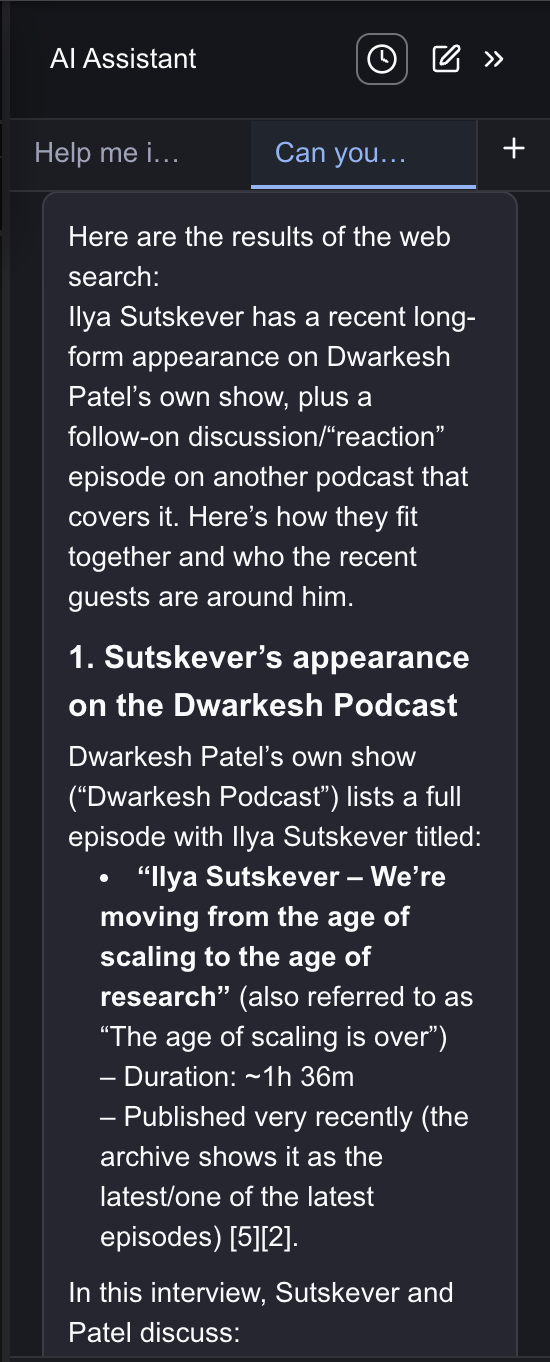 When your search completes, Jeannie displays the results directly in the conversation panel. The response typically includes a direct answer to your question, synthesized from multiple web sources. You'll see the key information presented in a clear, readable format—no need to click through multiple links yourself.
Jeannie formats the results intelligently in Markdown, often organizing information with headings, bullet points, or numbered lists depending on the type of query. For factual questions, you'll get a concise answer. For more complex topics, the response includes relevant context and background information to help you understand the full picture.
Each result includes source citations so you can verify the information or dive deeper into any topic that interests you by clicking the links.
You can ask Jeannie to put the results right into your document or to intelligently use the information in the results to write something new or create a table or anything you can imagine.
## **Using Results in Your Document**
After reviewing your search results, you have three ways to use the information:
Copy the entire response to your clipboard. Paste into other apps, emails, or anywhere outside Inkstone.
Add results directly at your cursor position. Ideal for incorporating facts or quotes into your current work.
Generate a new document with the results. Perfect for saving research separately or building a reference collection.
### **The Result**
Once inserted or created, the content becomes regular editable text. You can format it, trim it down, expand on certain points, or use it as a starting point for your own writing. Jeannie remains available in the same thread if you need follow-up searches or want to refine the information further.
When your search completes, Jeannie displays the results directly in the conversation panel. The response typically includes a direct answer to your question, synthesized from multiple web sources. You'll see the key information presented in a clear, readable format—no need to click through multiple links yourself.
Jeannie formats the results intelligently in Markdown, often organizing information with headings, bullet points, or numbered lists depending on the type of query. For factual questions, you'll get a concise answer. For more complex topics, the response includes relevant context and background information to help you understand the full picture.
Each result includes source citations so you can verify the information or dive deeper into any topic that interests you by clicking the links.
You can ask Jeannie to put the results right into your document or to intelligently use the information in the results to write something new or create a table or anything you can imagine.
## **Using Results in Your Document**
After reviewing your search results, you have three ways to use the information:
Copy the entire response to your clipboard. Paste into other apps, emails, or anywhere outside Inkstone.
Add results directly at your cursor position. Ideal for incorporating facts or quotes into your current work.
Generate a new document with the results. Perfect for saving research separately or building a reference collection.
### **The Result**
Once inserted or created, the content becomes regular editable text. You can format it, trim it down, expand on certain points, or use it as a starting point for your own writing. Jeannie remains available in the same thread if you need follow-up searches or want to refine the information further.
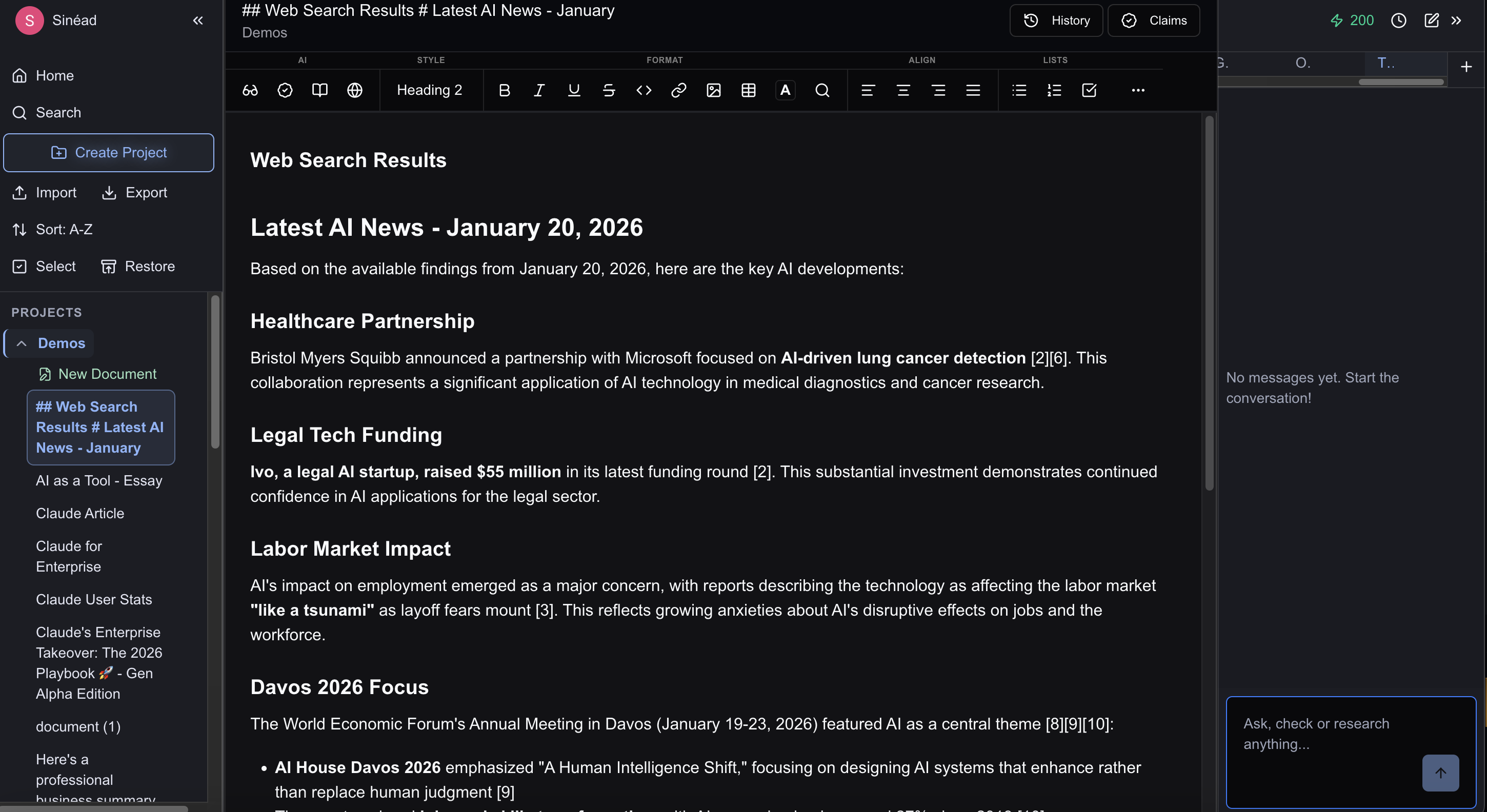 Click to expand: Web search results inserted into a new document
## **Web Search vs. Deep Research**
| **Feature** | **Web Search** | **Deep Research** |
| :---------- | :---------------------------------- | :---------------------------------------------- |
| Speed | Fast (seconds to a minute) | Slower (more thorough, as much as 5-15 minutes) |
| Depth | Surface-level but with direct links | Comprehensive report with links and citations |
| Sources | Few, recent | Many, analyzed |
| Best for | Facts, news | Analysis, learning |
## **Limitations**
* Results depend on what's available online
* May not find paywalled content
* Very recent events (minutes ago) may not be indexed
* Cannot access private or restricted information
## **Next Steps**
* [**Proofreading**](/docspage/ai-tools/proofreading) - Polish your writing with grammar and style suggestions
* [**Fact Checking**](/docspage/ai-tools/fact-checking) - Verify claims in your writing
Click to expand: Web search results inserted into a new document
## **Web Search vs. Deep Research**
| **Feature** | **Web Search** | **Deep Research** |
| :---------- | :---------------------------------- | :---------------------------------------------- |
| Speed | Fast (seconds to a minute) | Slower (more thorough, as much as 5-15 minutes) |
| Depth | Surface-level but with direct links | Comprehensive report with links and citations |
| Sources | Few, recent | Many, analyzed |
| Best for | Facts, news | Analysis, learning |
## **Limitations**
* Results depend on what's available online
* May not find paywalled content
* Very recent events (minutes ago) may not be indexed
* Cannot access private or restricted information
## **Next Steps**
* [**Proofreading**](/docspage/ai-tools/proofreading) - Polish your writing with grammar and style suggestions
* [**Fact Checking**](/docspage/ai-tools/fact-checking) - Verify claims in your writing